How to Place an Order on HstockPlus
Open a product, click Buy Now, pay on Checkout, then confirm delivery in My Orders. This guide covers guest email checkout, Account Balance, Auto vs Manual delivery, reviews, private seller labels, and Favorites.
 Michael Chen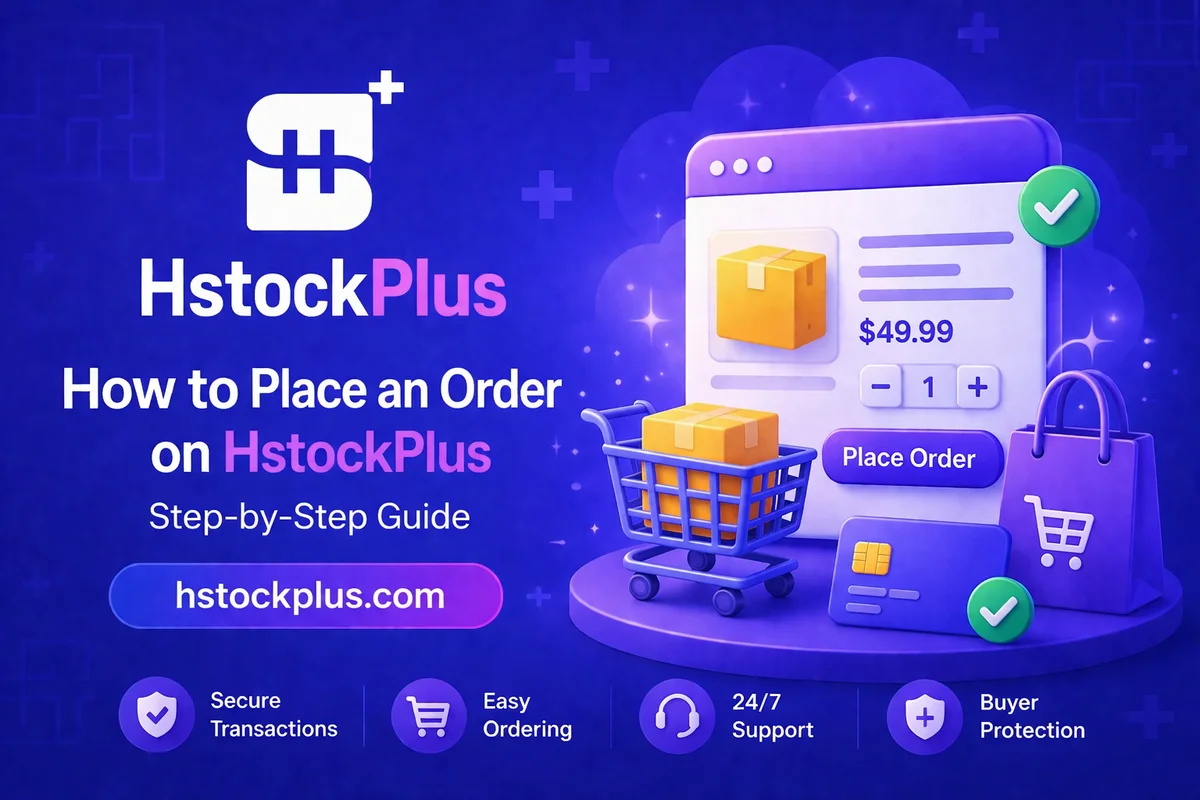
Open a product page, set quantity, click Buy Now, then pay on Checkout. You can check out as a guest with an email, or log in to use Account Balance and member discount.
1. Open a listing and read it
Search the catalog, open a category, or go to a shop. On the product page, check price, stock, Auto delivery vs Manual delivery, warranty, and the seller name. Public reviews sit on the same page. The marketplace only shows written reviews from the last 3 days.
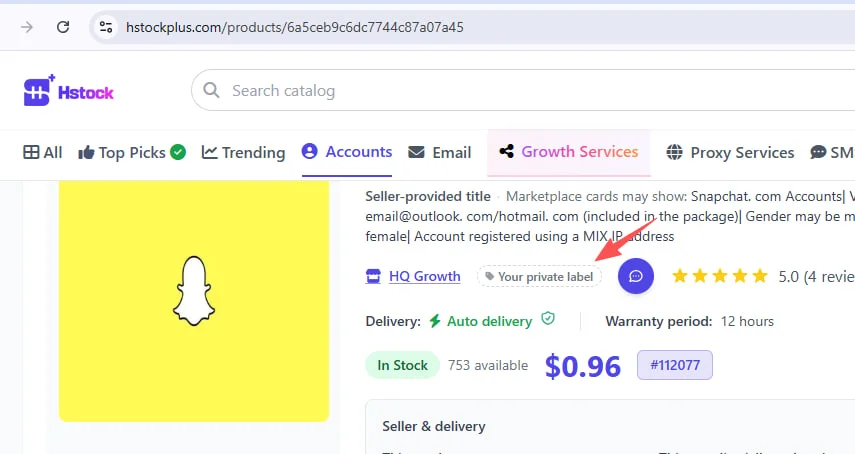
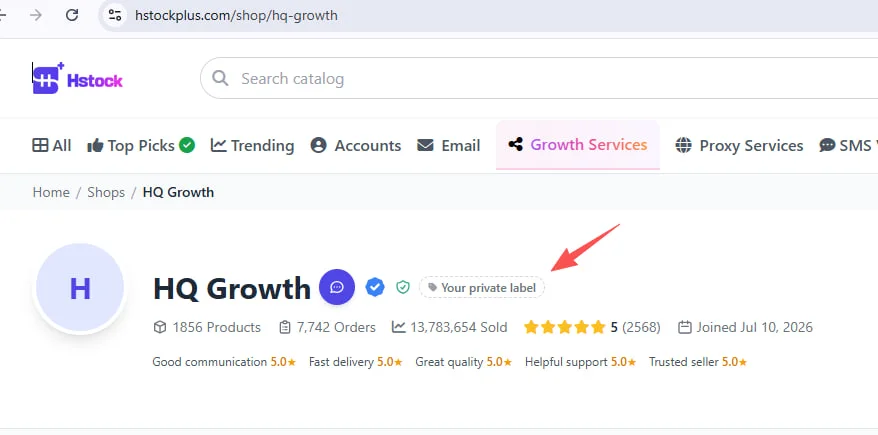
If you like the product, click the heart to add it to Favorites. Beside the seller name, click Your private label if you already know you want to buy from this seller again, or avoid them. That tag is only visible to you. It belongs to the seller, so it also appears on their shop page.
Some listings ask you to fill extra fields or pick add-ons before checkout. Fill required lines so they match the quantity. Then click Buy Now. Out of stock and blocked listings disable the button.
Start with a small quantity on a seller you have not used. Bulk orders are harder to unwind if the first batch is wrong.
2. Check out and pay
Checkout shows Account Information, Order Details, Payment Method, and Order Summary. Guests must enter an email for order updates. After payment, HstockPlus creates a buyer account for that email so you can open the order later. Use How to Create a Buyer Account if you want to log in first.
Guests see Log in to get more discount. Logged-in buyers can pay with Account Balance. Top up first if the balance is short: How to Deposit on HstockPlus. Guest checkout cannot use balance.
Other methods on Checkout: Cryptomus, Payeer (pick a Payeer option), and Binance / USDT manual transfer (admin review). Each method has a minimum, and some have a maximum. If the total sits outside that range, pick another method or remove the coupon. Apply a coupon in Order Summary if you have one.
Growth services may ask for a profile URL or username on this page. Click Pay Now when the form is complete. You land on a thank-you page for instant inventory, or you wait while a gateway finishes.
3. Delivery, confirm, and My Orders
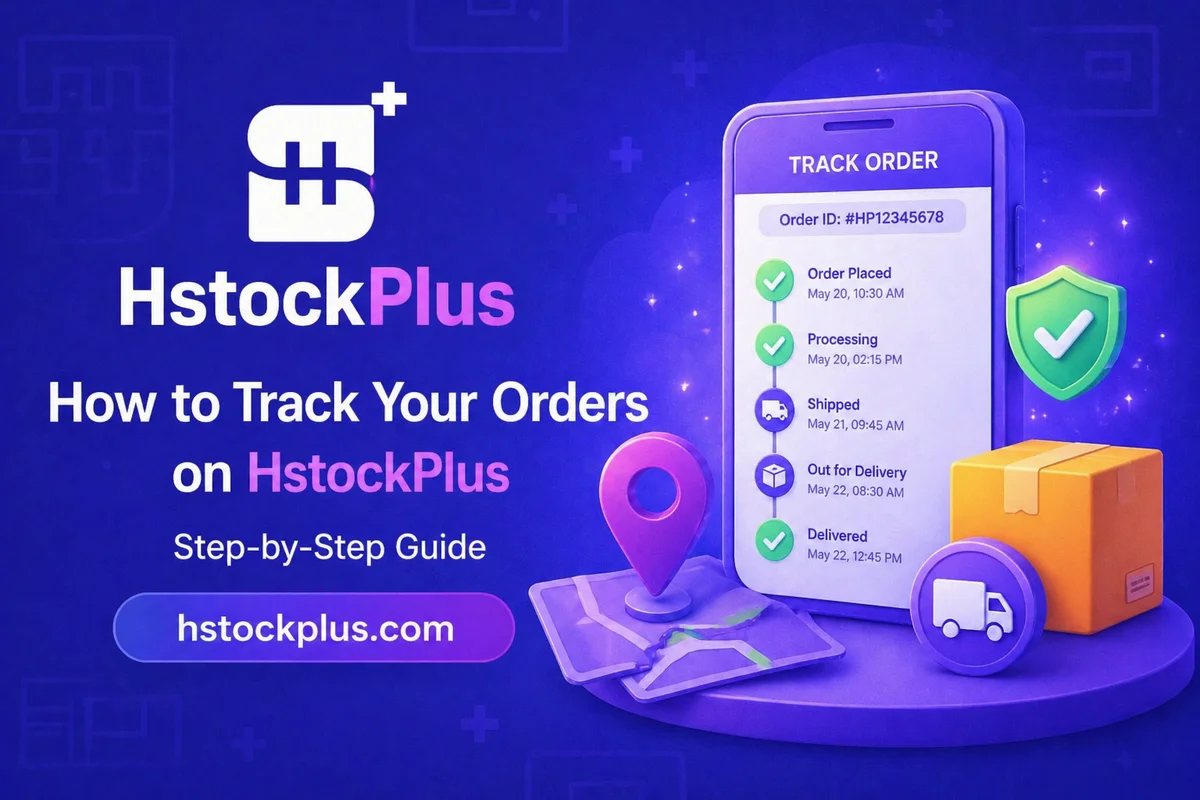
Auto delivery inventory can appear as soon as payment clears. Manual products wait for the supplier. Growth orders start after you supply the target link. Track status under Dashboard → My Orders. Details: How to Track Your Orders and How Order Delivery Works.
Open the order, check the delivery, then confirm. Confirming releases funds to the supplier and unlocks the review form. If you do nothing, the order auto-confirms after a wait set by the seller's level, commonly 1 to 3 days. Do not confirm if the delivery is wrong. Open a dispute instead: How to Open a Dispute on HstockPlus. After-sales tickets need an active warranty on that order.
4. After you buy: review, private label, Favorites
After you confirm, score communication, delivery, quality, support, and trust on the order page, and write a short comment. That review shows on the product and shop pages.
A private label is for you, not for other buyers. On the product page or the shop page, click Your private label next to the seller name and choose Good, Bad, or a custom tag. Next time you open that seller, the badge is there. Manage tagged sellers under Dashboard → Seller labels.
Click the heart on a product you want to reorder. Open Favorites from your dashboard when you are ready to buy again.